Building a Linux fingerprint driver for the ELAN 04f3:0c90 sensor
Contents
Linux has no driver for the fingerprint sensor in my laptop. ELAN, the company that makes the sensor, publishes no documentation. So I reverse engineered its USB protocol and built a driver for it. That driver now unlocks both the login screen and the lock screen. This post shows how I did it, including my mistakes.
I am not a systems programmer. When I started, I did not even know what a USB endpoint was. If you are comfortable writing code but have never worked this close to the hardware, you are exactly who I wrote this for.
The code is at github.com/prawesh-12/elanprint-rs.
The day my fingerprint option disappeared
My laptop is an ASUS Vivobook 16X (K3605ZF_K3605ZF 1.0). Fingerprint login worked on Windows 11 for about a month after I bought it. Then one day in December 2023, I powered the laptop on and found the fingerprint option was gone. In Settings, it showed as disabled. I searched online and learned it was a driver problem. On the ASUS website I found the official driver for the sensor (FOCAL Fingerprint Driver V3.00.4901.2753), but installing it several times did not fix anything.
I later switched to Ubuntu 22.04, where I found that Linux had no driver for this sensor at all. In December 2023 I tried to write one, following a few YouTube tutorials. Nothing worked. At the time, I was a beginner at C programming. I did not know how Linux talks to hardware, and ELAN publishes no datasheet or protocol notes for the sensor. After four days, I gave up.
In September 2026 I tried again, this time with OpenCode, an AI coding tool (the Muse Spark 1.3 and Nemotron 3 Ultra models). I started with four questions:
- When I touch a fingerprint sensor, how does it read my finger?
- How does that reading reach the operating system?
- What is the difference between kernel space and userspace, and which side does a fingerprint sensor belong on?
- When I log in, what is actually asking for my fingerprint?
The fingerprint login chain
The program that shows the login screen and starts your desktop is called a display manager. Linux has a few of them. GDM, SDDM and LightDM are the common ones. I use Ubuntu with GNOME, so mine is GDM (GNOME Display Manager). Its login screen is the one where you pick your user and type your password. After you log in, GDM starts the GNOME desktop.
GDM does not check your password or your fingerprint itself. It hands that job to PAM (Pluggable Authentication Modules). PAM decides whether you are allowed to access the system. The login screen, the lock screen and sudo all go through it.
PAM does not know how to check anything on its own. Small pieces of code called modules do the actual checking. They can be plugged in or left out. That is what "pluggable" means. One module might check your password, another might check your fingerprint, and another might unlock your saved passwords after you are in. Every program that uses PAM, like the login screen or sudo, has its own small config file. The file lists which modules to run, in what order, and whether each one must succeed. These files all live in one folder: /etc/pam.d/. GDM already comes with such a file for fingerprint login: /etc/pam.d/gdm-fingerprint. The first module in it is pam_fprintd.
pam_fprintd does not talk to the fingerprint sensor either. It sends requests like "check this user's finger" (VerifyStart) or "enrol a new finger" (EnrollStart) to a background program called fprintd. Those requests travel over D-Bus. D-Bus carries messages between programs on a Linux desktop.
fprintd is the program that works with the fingerprint sensor. But every sensor model has its own protocol: one sensor expects certain bytes to start a scan, and another expects completely different ones. fprintd does not know any of these protocols.
That is what libfprint is for. It is a library (a collection of code that other programs can use) that fprintd uses for the actual sensor work. It comes with Ubuntu, so it is already on your machine. Inside it, every supported sensor model has its own small driver: a piece of code that knows the exact bytes its sensor understands, and sends them over USB. libfprint can only talk to the sensor models it has a driver for.
So fingerprint login works only if one of those drivers matches your sensor model. If none matches, nothing else in the chain can help.


swipe sideways to see the whole diagram
On my laptop, the problem was inside libfprint: it had no driver for my sensor.
To see why, you need to know how a sensor gets matched to a driver. Every USB device reports two ID numbers: a vendor ID for the company that made it, and a product ID for the exact model. You can see them with lsusb:
$ lsusb -d 04f3:0c90
Bus 001 Device 002: ID 04f3:0c90 Elan Microelectronics Corp. ELAN:ARM-M4
04f3 is ELAN and 0c90 is my sensor model. Every driver in libfprint keeps a list of the product IDs it supports. libfprint does have ELAN drivers, and their lists include models very close to mine, like 0c8d and 0c98. But 0c90 is on none of those lists, so libfprint ignores my sensor completely.
Does a driver have to live in the kernel?
Linux runs code in two places. The kernel is the core of the operating system. It talks to hardware directly, and a bug there can freeze the whole machine. Userspace is where normal programs run, like your browser or text editor. If one of them crashes, only that program stops working.
In 2023, I assumed a driver always had to live in the kernel, which is the harder place to write code. That is not always true. Some USB devices are handled by a driver inside the kernel. When you plug in a USB keyboard, for example, the kernel's keyboard driver recognises it and takes it over.
Other devices have no kernel driver, so the kernel leaves them alone. They still show up as a file, because Linux represents a lot of hardware as files. On my laptop, the sensor is /dev/bus/usb/001/002, which matches the "Bus 001 Device 002" in the lsusb output above.
A program can open that file the same way it opens any other file. Through it, the program can send bytes to the sensor and read the bytes the sensor sends back. That is all a driver needs: a way to send commands and read replies.
My sensor is one of those devices. No kernel driver recognises it, so I could write the driver as a normal userspace program.
The next question was how to connect that program to the login screen. Nothing in the login chain talks to libfprint directly; pam_fprintd only talks to fprintd, over D-Bus, and it does not care which program answers. So instead of adding a driver to libfprint, I wrote my own program, elanprintd, that takes fprintd's place:
- On one side, it answers the same D-Bus requests as fprintd, like
VerifyStartandEnrollStart. - On the other side, it talks to my sensor over USB.
GDM, PAM and pam_fprintd keep working exactly as before.


swipe sideways to see the whole diagram
Reading the sensor's USB description
Now I had a plan, and the next step was to learn what my sensor actually was. USB, short for Universal Serial Bus, is the standard connection a computer uses to talk to hardware. Keyboards, mice, flash drives and fingerprint sensors all use it. Every USB device carries a description that the kernel reads when you plug it in. You can print it without sending the device anything:
lsusb -v -d 04f3:0c90Three things in that output mattered.
The product string is ELAN:ARM-M4. The sensor is a small ARM Cortex-M4 computer with its own flash memory (the kind that keeps its contents when the power is off). It does the fingerprint matching itself. When you enrol a finger, the chip builds a template: a compact summary of the print, closer to a hash than to a photo. It stores the template in a numbered slot in its flash. When you touch the sensor later, the chip compares your touch against its templates and reports which slot matched. The computer never sees a fingerprint image. This is called match-on-chip.
The interface class is 255, which means "vendor specific". The kernel has drivers for standard classes like keyboards and storage, but none for this sensor, so it leaves the device alone. That is why my program could take it over.
The device also has endpoints. An endpoint is a one-way channel. Think of each one as its own pipe into the chip. OUT endpoints carry data from the computer to the device, and IN endpoints carry data back. The driver uses four:


swipe sideways to see the whole diagram
The sensor actually declares eight endpoints: four pairs, each with one pipe out and one pipe back. The driver uses only one endpoint from each pair. The other four are unused.
Why I could not just try commands
Before I could send anything to the sensor, I had to decide what I was allowed to send. The usual way to reverse engineer a protocol is to send something, see what comes back, and adjust. I could not do that here. The chip has writable flash and is soldered to the motherboard. If a wrong command wrote to flash or put the chip into firmware update mode, the sensor would be dead with no way to recover it.
So I needed bytes from a source I could trust. depau/elanpoc, an MIT-licensed proof of concept by Davide Depau, documents a related ELAN sensor (0c4c). It has a command table, message format, enrolment steps and error codes. But it does not cover 0c90, so every byte from it was unproven on my sensor.
I put every command I planned to use in docs/protocol.md, each with a status. A command from elanpoc starts as documented. It becomes confirmed only after I send it to my sensor and record the reply. The rules were:
- Nothing outside that table gets sent.
- A failed command is never retried with changed bytes.
- A short "never send" list holds dangerous commands, such as entering the bootloader (the mode used to write new firmware), so nobody reuses those bytes by accident.
Learning to watch every byte
To see what each command did, I needed to watch the bytes. I used usbmon, a Linux feature that records USB traffic. Each line shows a request going out or finishing, plus the endpoint, the length and the bytes. tshark (the command-line version of Wireshark) was not installed on my machine, so I wrote tools/usbmon_filter.py to print the traffic of one device.
Some commands only answer after you touch the sensor. If one of those shows nothing in a capture, either the chip stayed quiet or nobody touched the sensor. Both look the same. So a touch test only counts if I can confirm that a touch really happened. The AI models ran their tests the same way. When a test needed a finger, the model running it asked me to touch the sensor and did not read the result until I confirmed the touch.
Talking to the chip for the first time
With a safe command list and a way to watch the traffic, I could finally start talking to the chip. Most commands start with the byte 40, followed by one or two bytes that say what to do. The first command I sent asked for the firmware version:
sent:     40 19
reply:    01 08     (on endpoint 0x83)
That is firmware 1.8. The USB description had already reported version 1.08, so two independent sources agreed.
Next I asked for the sensor's size. The reply was 4f 00 4f 00. 0x4f is 79, and the elanpoc notes say to add one to each dimension, so this is an 80 by 80 sensor.
Then I asked how many fingers were enrolled:
sent:     40 ff 04
reply:    40 00     (on endpoint 0x83)
In this reply, the first byte is the command's 40 echoed back. The second byte is the count: zero. A parser that reads both bytes as one number gets 0x4000, which is 16,384 fingers. This command is called enrolled_num.
All three replies matched the elanpoc notes. After that, I trusted the source enough to try the commands that involve a finger.
Why verify never replied
The command that checks a fingerprint is verify: three bytes, 40 ff 03. I sent it and touched the sensor. Nothing came back.
The capture showed the chip accepting the command. The program was reading endpoint 0x84, and it waited there until its three-minute timeout ran out. The second run ended the same way. Neither run had a confirmed touch, so I recorded both as undetermined.
I wrote down three possible explanations:
- The reply was arriving on an endpoint I was not reading.
verifyneeded another command first.40 ff 03was notverifyon this chip.
I set the third explanation aside. Testing it would have meant guessing new bytes, which the rules did not allow. Nothing outside that table gets sent.
To test the first explanation, I needed to know one thing about USB. A device can only answer when the computer is already waiting for a reply on that endpoint. usbmon only records reads that were started. So if the chip had tried to answer on 0x83 while I was reading from 0x84, the capture would show nothing.
So I started reads on both 0x83 and 0x84, sent the command again, and touched the sensor:
  5.896  S  bulk OUT 0x01  -115    3  40 ff 03
  5.896  S  bulk IN  0x83  -115   64
  5.896  S  bulk IN  0x84  -115   64
185.898  C  bulk IN  0x83    -2    0
185.899  C  bulk IN  0x84    -2    0
S marks a request going out and C marks it finishing. The first three lines show the verify command and the two reads going out together. The last two lines show the reads finishing three minutes later with zero bytes.
Right after that, I re-ran the three earlier commands. The firmware version, the sensor size and the finger count all answered correctly, so the chip was not frozen. It was answering everything except verify. I was also reading from every endpoint it could answer on. That left the second explanation.
In the elanpoc source, every successful verify happened after enrolled_num. I had been sending verify straight after opening the device. So I added enrolled_num in front and ran it again:
 5.966  S  bulk OUT 0x01  -115    3  40 ff 04
 5.966  C  bulk IN  0x83     0    2  40 00
 5.967  S  bulk OUT 0x01  -115    3  40 ff 03
 5.967  S  bulk IN  0x83  -115   64
 5.967  S  bulk IN  0x84  -115   64
26.838  C  bulk IN  0x84     0    2  40 fd
Twenty seconds after verify went out, two bytes arrived on 0x84.
40 fd means "finger not enrolled", the correct answer for an empty chip. It took me 20.87 seconds to touch the sensor.
On this sensor, any command that waits for a finger never answers unless enrolled_num is sent first, on the same open connection. There is no error message and no timeout on the chip's side. I could not find this written down anywhere. I started calling it arming the sensor: no finger command answers until enrolled_num is sent.
More runs showed that one enrolled_num per connection is enough, that the arming lasts through a 12.7-second pause, and that it does not change the replies to other commands. In the driver, it is three lines:
if !self.armed {
    self.send_arm().await?;
    self.armed = true;
}
elanprintd holds one connection open for a whole login or enrolment. If anything goes wrong, it tells the chip to abort and clears the flag, so the next operation sends enrolled_num again.
The elanpoc project says its own enrolment is broken. I suspect the arming rule is the reason, but I do not have their hardware to check.
Two surprises in the chip's replies
verify was finally answering, and now I could start reading the chip's replies. Two of them were not what I expected.
A match is just a slot number
verify has no field for a finger. You cannot tell it which finger to check. It compares the touch against every template on the chip and returns the slot that matched:
finger stored in slot 0   ->  40 00
finger stored in slot 1   ->  40 01
a finger never enrolled   ->  40 fd
The fprintd interface, however, lets you verify one finger by name. My first version passed the chip's answer straight through, so with two fingers enrolled, when I asked it to verify right-index-finger and touched with my left, it still returned verify-match.
The chip also matches fingers enrolled by other users on the same laptop, and fingers left behind by a previous install. Uninstalling the software does not erase the sensor. A slot number says nothing about which person it belongs to.
So elanprintd keeps a small JSON file that maps users and finger names to slots. It holds no fingerprint data:
{ "prawesh": { "left-index-finger": 0, "right-index-finger": 1 } }When a login starts, elanprintd looks up which slots belong to the user who is logging in. If the chip returns any other slot, elanprintd reports no match:
match allowed.get(&id) {
    Some(name) => sink.emit(OpEvent::VerifyFingerSelected { finger: name.clone() }).await,
    None => result = dbus::verify::NO_MATCH,
}
Every slot gives the same answer
finger_info is supposed to describe one slot. The elanpoc notes say it returns 70 bytes. The reply I got was two bytes, 40 ff, for every slot. Even after I enrolled a finger into slot 0, slot 0 still returned 40 ff:
sent:     40 ff 12 00
reply:    40 ff
So the computer cannot tell which slots are in use. The only number it can trust is the count from enrolled_num. If you scan for an empty slot to enrol a new finger, the scan says slot 0 is free even when it holds a finger, and the new enrolment overwrites it.
I knew this, and I still lost a fingerprint to it. During a development run, the JSON file was written as an empty {}. My code treated the file as the truth: it saw a finger on the chip that the file did not know about, decided the two were out of sync, and deleted the template from the chip to match the file. The code that picks a slot for a new finger would also have offered slot 0 whenever the file was empty.
Both bugs came from trusting the file on the computer over the chip. The fix has two parts:
- The chip's count is now a floor, a minimum. A new finger always goes into a slot at or above it, whatever the file says.
- The function that sends a delete now requires a
DeleteIntentvalue. The only way to create one is from a delete request a person made. No comparison or sync can produce one.
A test covers the exact case that went wrong: an empty file, one finger on the chip, and an enrolment that must not use slot 0.
Eight touches, then silence
With verify working, the last thing to fix was enrolment in elanprintd.
Enrolling a finger takes eight touches. After the eighth, the computer sends a collision check (is this finger already stored?) and then commit, which writes the template to flash.
My command-line tool could enrol a finger. elanprintd, using the same protocol code, took all eight touches, sent the collision check, and then hung until it timed out. It never sent commit, and nothing was saved.
The cause was the endpoints. Within one enrolment, replies switch between them:
enroll sample     40 ff 01 00 08 07 00   ->  40 00      on 0x84
collision check   40 ff 10               ->  40 00 ff   on 0x83
commit            40 ff 11 f5 ...        ->  40 00      on 0x83
Samples wait for a finger, so they answer on the touch channel (0x84). The check and the commit answer on the status channel (0x83).
elanprintd read every reply from 0x84. Reading the wrong endpoint gives no error; the read simply waits until it times out. The command-line tool guessed the endpoint from the outgoing bytes, and its guess happened to be right.
I removed the guessing completely. Now each command in the protocol library says which endpoint its reply comes on, how many bytes to expect and how long to wait:
pub fn pending_read(&self) -> Option<(ReplyEndpoint, usize, Duration)> {
    self.pending_command()
        .map(|c| (c.reply_endpoint(), c.expected_len(), c.timeout()))
}
After the fix, commit answered 40 00 on 0x83 in 103 milliseconds, and the finger count went from zero to one.
I wrote the driver in Rust. I kept all the protocol code (building commands, reading replies, picking endpoints) in a separate library that never touches USB. That way, all of it can be tested without the sensor plugged in. The project has 145 tests: 144 run with cargo test --workspace, and one is ignored by default. None of them need hardware. The tests for elanprintd use a fake device that records every byte sent and which endpoint was read, so a test can check that a delete is never sent unless a person asked for it.
Taking fprintd's place
Now the driver had to take fprintd's place. elanprintd claims fprintd's name on the system D-Bus and answers the same requests, so anything that would talk to fprintd reaches elanprintd instead. Installing the driver turns off the fprintd that comes with Ubuntu, which wants the same name and has no driver for this sensor anyway. GDM already has the gdm-fingerprint file, so the driver needs no PAM change at all.
The original fprintd checks permissions with polkit, the system program that decides who is allowed to do what. elanprintd does not use polkit yet, so it does its own check. It asks D-Bus which user sent each message, and that answer cannot be faked. The login screen runs as root (the system administrator account), so it may act for anyone. Other users may only enrol, verify or delete their own fingers.
pam_fprintd compares status strings like verify-match letter by letter. A typo makes login hang with no error at all. So I copied every string from the D-Bus interface description of fprintd 1.94 on this machine.
So, did it work?
After all that, here is what the driver could do:
| What | Result |
|---|---|
| Enrol a finger | 8 touches, commit answered in 102 to 103 ms |
| Verify a known finger | 10 of 10 matched, plus 5 of 5 later on a second finger |
| Reject an unknown finger | 10 of 10 no-match |
| Two fingers | each matched its own slot every time |
| After a full reboot | count read 40 01 before any touch and the finger matched again |
| Lock screen and login screen | both unlock with a finger |
Eight of the sixteen commands in docs/protocol.md are confirmed on this sensor:
| Command | Sent | Reply | Endpoint |
|---|---|---|---|
fw_ver | 40 19 | 01 08 | 0x83 |
sensor_size | 00 0c | 4f 00 4f 00 | 0x83 |
enrolled_num | 40 ff 04 | 40 00, 40 01, ... | 0x83 |
finger_info | 40 ff 12 + slot | 40 ff | 0x83 |
verify | 40 ff 03 | 40 00, 40 01, 40 fd | 0x84 |
enroll | 40 ff 01 + 4 bytes | 40 00 per touch | 0x84 |
check_enrolled_collision | 40 ff 10 | 40 00 ff | 0x83 |
commit | 40 ff 11 + 69 bytes | 40 00 | 0x83 |
Part two: the keyring that stayed locked
This problem is not specific to my sensor. It affects anyone who logs into GNOME with a fingerprint.
Even with the driver working, one thing was still broken. After a fingerprint login, a window asked for my password because the Wi-Fi wanted a saved secret. The system log showed why:
gdm-fingerprint: gkr-pam: no password is available for user
gdm-fingerprint: pam_unix(gdm-fingerprint:session): session opened for user
gdm-fingerprint: gkr-pam: couldn't unlock the login keyring
The login worked, the session opened and the keyring did not unlock.
Why a fingerprint cannot open your keyring
GNOME Keyring stores saved Wi-Fi passwords, browser logins and account tokens. It is encrypted with your account password. When you log in with a password, PAM puts that password in a value called PAM_AUTHTOK, and the pam_gnome_keyring module reads it from there to unlock the keyring.
A fingerprint login never sets PAM_AUTHTOK, because a fingerprint is not a password. On this sensor, a successful match returns a slot number, such as 40 00 for slot 0, not a key. On supported Windows systems, Windows Hello can use a fingerprint to authorise access to a device-bound key, which may be protected by a TPM. On Apple devices, Touch ID can authorise the use of keys protected by the Secure Enclave. In neither case does the fingerprint become a password. GNOME Keyring works differently: it normally needs the account password supplied through PAM. So after a fingerprint login, the keyring module has nothing to work with, and the keyring stays locked.
A secret only this machine can open
The gdm-fingerprint file already lists the keyring module right after pam_fprintd:
auth  required  pam_fprintd.so
auth  optional  pam_gnome_keyring.so
The only thing missing is a value in PAM_AUTHTOK. Many laptops, including this one, have a TPM: a security chip on the motherboard that can seal a secret so that only this machine can unseal it.
The keyring unlock is optional and needs a one-time setup:
- It generates a random 32-byte secret and seals it with the TPM using
systemd-creds. - It checks that the secret unseals, then adds one module line to both of the login screen's PAM files.
- It shows you a recovery key and asks you to type it back. Only after you confirm does it change the keyring password to that secret.
The new pam_elanprint_keyring line is the only PAM change in the project. It sits directly above pam_gnome_keyring:
auth  required  pam_fprintd.so
auth  optional  pam_elanprint_keyring.so
auth  optional  pam_gnome_keyring.so
At every login after that:


swipe sideways to see the whole diagram
When it fails, nothing changes
The design goal was simple: if anything goes wrong, fall back to the old behaviour. Every failure inside the module returns PAM_IGNORE, which tells PAM to skip this module. A missing file, a TPM that will not unseal, a hang or a crash all leave you where you were before: the keyring stays locked and the login still works. The call to systemd-creds has a two-second timeout, so it cannot freeze the login screen. The module catches its own crashes, so a bug inside it cannot take down the login screen.
The system log across three boots shows each stage:
without the module        gkr-pam: no password is available for user
                          gkr-pam: couldn't unlock the login keyring

wired, before the re-key  gkr-pam: stashed password to try later in open session
                          gkr-pam: the password for the login keyring was invalid

after the re-key          gkr-pam: stashed password to try later in open session
                          gkr-pam: unlocked login keyring
The middle state proves the module handed over a secret before the keyring was changed to match it.
Why it is off by default
With this feature on, a matching finger unlocks the session and every secret in the login keyring. That is why it is turned off by default.
After setup, only the TPM secret opens the keyring. If the TPM is cleared, or the disk moves to another machine, the keyring stays locked, which is what the recovery key is for. Secrets you do not want a finger to release can go in a second keyring with its own password. Only the keyring named login unlocks automatically.
What I still do not know
Everything here came from one laptop, one sensor and firmware 1.8, on Ubuntu 24.04.4 with GNOME 46 and fprintd 1.94.3. Keep that in mind:
- Other units of the same sensor might behave differently. The arming rule and the
40 ffreply fromfinger_infocould be specific to this firmware. - I have not run
deletewith the current code.wipe_allhas never been sent. libfprint uses a different byte for the same job on related sensors. - Nothing on the chip says how many touches an enrolment needs. Eight works. libfprint uses nine for related sensors.
- I do not know how many slots the chip has. The
elanpocformula that builds thecommitcommand breaks from slot 11 upward. - Login screen support depends on the
gdm-fingerprintfile that comes with GDM. Other desktops, like KDE, Cinnamon and XFCE, have no equivalent file. - I cannot measure a false accept rate (how often the wrong finger is accepted) or fake-finger detection with one sensor, so I make no claims about either.
- Uninstalling does not erase the chip. The uninstaller's
--wipe-deviceoption relies on the untestedwipe_all. - The TPM seal has not been tested across a laptop firmware update yet.
Trying it on your own laptop
The hardware tests in this post ran on Ubuntu 24.04.4. My current system runs Ubuntu 26.04.1, where everyday fingerprint login continues to work and cargo test --workspace passes with 144 tests and one ignored. I have not repeated the hardware tests on 26.04.1, and I have not verified other Ubuntu releases.
You need the sensor and Ubuntu 24.04 or newer:
lsusb -d 04f3:0c90      # one line back means you have it
lsb_release -d
Install the released package (64-bit Intel and AMD only):
curl -fsSLO https://github.com/prawesh-12/elanprint-rs/releases/latest/download/elanprint-rs_amd64.deb
sudo apt install ./elanprint-rs_amd64.deb
Check that elanprintd is running and owns fprintd's name:
systemctl is-active elanprintd
busctl --system status net.reactivated.Fprint
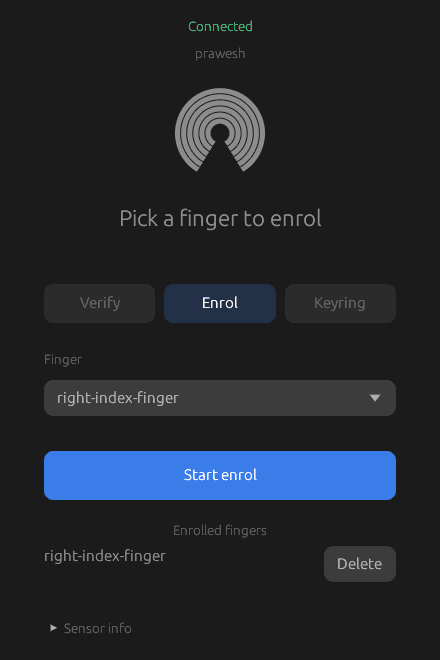
Open the elanprint-rs app, enrol a finger, then lock the screen and touch the sensor. Password login keeps working.
The keyring unlock is off by default. Read part two before you turn it on:
elanprint-keyring enableTo remove the driver, run sudo apt remove elanprint-rs. To build from source, see the README.
What comes next
- Move permission checks to polkit. The policy file is already in the repo.
- Confirm the number of enrolment touches on this chip.
- Test on other
04f3:0c90units, especially with a different firmware version.
If you have this sensor, open an issue at github.com/prawesh-12/elanprint-rs/issues with your lsusb line and the firmware version that elanprintd logs. If you are working on a different ELAN sensor, docs/findings.md has every reply this chip sent me.
What I learned
I gave up on this sensor in 2023 because I tried to understand everything at once. In 2026, I broke the problem into small questions and answered each one before moving to the next.
Each finding came the same way. Something did not match the documentation, so I wrote down every explanation I could think of and ran the simplest test that could rule one out. The arming rule came from changing the order of two commands. The endpoint bug came from noticing that the same protocol code worked in my command-line tool but hung in elanprintd.
I did not do this alone. The AI models worked with me through the whole project: writing code, running the experiments, keeping the notes. When they got stuck on something only I could answer, they wrote the question down and waited for me.
That habit is worth keeping: when something surprises you, stop and list the explanations before you start changing code.
References
depau/elanpoc, the ELAN0c4cproof of concept that gave me the starting command table (MIT).- libfprint, especially
elanmoc.candelan.c. - fprintd and its
pam_fprintd.c. - usbmon, the Linux USB capture feature.
pam_set_item(3), for howPAM_AUTHTOKworks.- systemd credentials, for the TPM sealing.
nusb, the pure-Rust USB library the driver uses.- Reversing a Fingerprint Reader Protocol by Neodyme, a similar project on a different sensor.